Running any business is an art and a science. There are tons of daily and long-term decisions you have to make to continue growing your business.
As a shop owner, you have to make sure your employees and customers are happy, that repairs are efficiently getting through the door, and that your shop is profitable.
The Art of Running Your Business
Intuition and emotional intelligence are what make up the art of running your shop.
Your intuition will steer the split-second decisions you make when it comes to things like helping technicians work through a challenge, answering customer questions, exploring business opportunities, and networking with partners. Intuition can be a good thing—after all, it’s the culmination of the experiences you’ve had before. For example, the bad gut feeling you get about a potential business partner can save you from a world of frustration.
Your emotional intelligence is also a crucial part of running your business. As a leader, you have to be there for your team, which means knowing when someone is having an emotionally off day so you can help them work through the situation. Your emotional intelligence is a guiding compass for your team's emotional responses to each other and to customers.
Some days, you or your service advisors will run into customer challenges. Your service advisors will follow your lead, so if you use your emotional intelligence and show empathy and understanding when a customer is having a bad day, that positive example will rub off on your entire team. Your service advisors will show patience and grace in similar situations.
However, while intuition and emotional intelligence are valuable, you can’t rely on them alone. You also need to test your business decisions—your business “hypotheses,” if you will—with data so you can know whether or not you’re on the right path.
The Science of Running Your Business
Running a business is like using the scientific method. You observe something related to a problem, brainstorm a hypothesis, test that hypothesis, and then come up with a conclusion that helps you tweak that hypothesis as needed.
By gathering data, you can test your various hypotheses and see if your decisions are paying off. For example, you might start running a particular deal to get more customers in the door, but when you analyze the data, you see that the deal is actually cutting into your profit margins, and with that knowledge, you can stop running that promotion.
Data might prove your intuition right. For example, your gut feeling (and observations) might tell you that your shop isn’t getting repairs finished fast enough. You look at your technicians’ time logs and see that repairs are taking longer than usual. From there, you might conclude that you need to hire an additional technician to better distribute repair work.
Or, data might prove your intuition wrong. Sometimes, what we think is our intuition is really a fear of change or a fear of trying something new. Perhaps you keep pushing back the timeframe to move your shop to a bigger, better location. However, once you examine your finances, you see that you do have enough money to successfully make the move.
Data can also help you lead with enhanced emotional intelligence. Consider this: some people are hard to read, or have valid reasons for putting up a wall. You might ask one of your technicians if they’re doing well, and they say they’re “all good.” But once you look at their technician efficiency data, you see that their productivity has been steadily declining. From there, you can sit down with them and address it. Maybe they’re burned out, need a break, or are dealing with something in their personal lives. Once you find out what’s going on, you can see what you can do to help them.
Stop Manually Crunching Numbers
As a shop owner, how many times have you found yourself crunching numbers after hours at your shop, missing out on that family dinner, football game, or just good old rest and relaxation?
Data is useful, but manually getting the numbers you need can be a time-consuming, headache-inducing, error-prone process. Without real-time reporting tools, you may have to manually calculate your gross profit for a given month by sifting through every repair order for that month, adding up the total payments, and then subtracting your total parts and labor costs from that total! This likely takes hours and hours of extra time at your shop.
Not to mention, when you’re adding and subtracting by hand, it can be easy to accidentally leave out a number—and end up with an inaccurate total! And arguably, the only thing worse than making business decisions based on zero data is making business decisions based on the wrong data.
But luckily, there’s an easier way for you to get crucial data on your business: with reporting tools inside of your repair orders software.
How Repair Orders Software Simplifies Data Collection and Analysis
At a basic level, repair orders software with real-time reporting tools will store information every time a service advisor writes a repair order and automatically crunches the numbers behind the scenes, generating easy-to-use reports you can access by logging into the system. As a side note, repair orders software is commonly referred to as a shop management system or shop management software, especially the aspects of those tools that assist the repair orders process.
When you look at most of the details your service advisors put into the shop management system when writing repair orders, they connect to your two main drivers of income: parts and labor. When your service advisors use repair orders software to write and close out repair orders, they’ll naturally be adding details like the parts ordered, the labor rate, and the final repair cost.
Meanwhile, in the background, the software is humming along, automatically synthesizing that data, crunching the numbers for you to generate different reports. You can then analyze those reports to gain key insights into the health of your business.
Knowledge is power—when you analyze the data, you’ll uncover insights that will help you make more strategic daily and long-term business decisions, like whether or not it’s time to:
The type of reports you’ll get will depend on which repair orders software you use. But generally, the reports will fall under four categories:
Finances: such as the End of Day, Sales Details, and Sales Tax reports in Tekmetric
Employee Activity: such as technician efficiency and service writer sales
Customer Activity: such as job history, declined jobs, and lead sources
Parts Activity: parts ordered and parts usage (for parts reconciliation purposes)
Let’s dive into some of the real-time reports that Tekmetric generates and explore the business insights you can gain from them.
1. End of Day Report
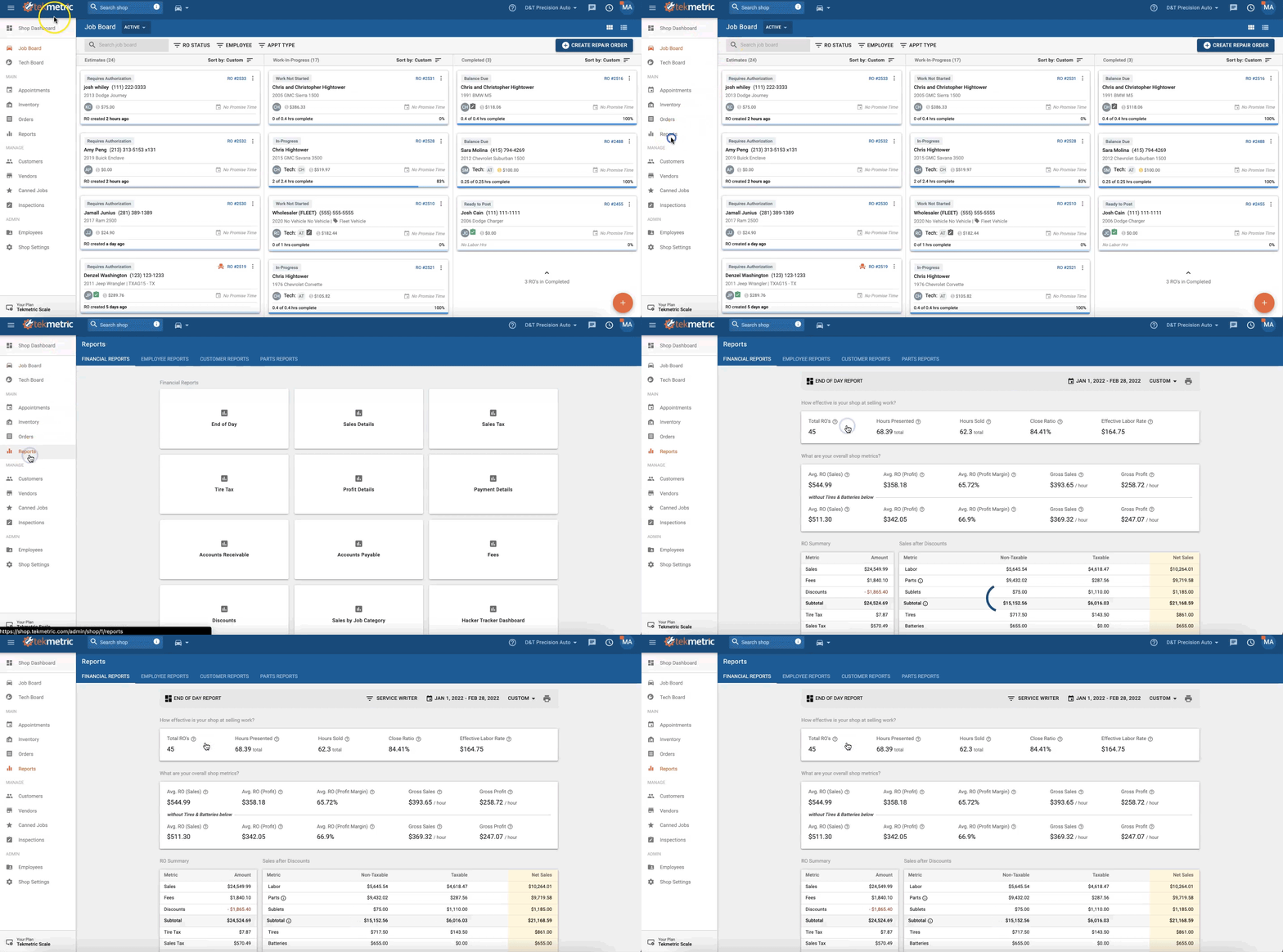
Think of the End of Day Report as a holistic overview of how effectively your shop has been selling repair work during a given time range (you’re not limited to just viewing your shop’s stats on a day-to-day basis!). In other words, the End of Day Report breaks down your shop’s overall shop metrics for the time range of your choosing.
Tekmetric’s End of Day Reports
The data you’ll find in the End of Day Report ties back to your shop’s sales and profits during a time range of your choosing:
Total ROs: the number of repair orders posted at your shop
Hours Presented: the total number of hours your shop showed customers
Hours Sold: the total number of hours your shop sold to customers
Close Ratio: the ratio of the total dollars your shop sold compared to the total dollars your shop presented to customers
Effective Labor Rate: the ratio of the labor dollars your shop sold compared to the labor hours your shop sold
Average RO (Sales): the total dollars sold on all posted ROs divided by the total posted ROs
Average RO (Profit): total profit dollars on all posted repair orders divided by the total posted ROs
Average RO (Profit Margin): RO profit divided by RO sales
Gross Sales: total sales dollars on all posted ROs divided by total hours sold on all posted ROs
Gross Profit: total profit dollars on all posted ROs divided by total hours sold on all posted ROs
How Real-Time Data Powers Decisions
The data found in your End of Day report can power various short-term and long-term business decisions that help you maintain a profitable shop over time.
For example, if you see that your gross profit dipped over the previous month, you can check a few other data sources to find the root of the problem, like how many new customers your marketing efforts have yielded and your current parts and labor rates. From there, you can determine how to get your shop back on track, such as by refining your marketing efforts to bring in more new customers or adjusting your shop’s parts and labor matrices. The scientific method in action!
Or, if you notice that your close ratio is hovering around 80%, you can sit down with your service advisors and brainstorm strategies to get it closer to 100%.
Tek-Tip: You can access the End of Day Report in Tekmetric by clicking on “Reports” in the sidebar, selecting “Financial Reports” in the top column, then clicking on “End of Day.”
Tekmetric’s End of Day Report breaks down your shop’s metrics by all sales—as well as your shop’s sales without tires and batteries. Additionally, the End of Day Report breaks down:
RO Summaries
Sales after Discounts
Gross Profit by Labor, Parts, Sublets, and Fees
Payment Details (Methods and Advance Pay)
2. Profit Details Report
The Profit Details Report gets into the nitty-gritty of the profits you’ve made across all repair orders during a given time period, as well as within individual repair orders.
Tekmetric’s Profit Details Report
In Tekmetric’s Profit Details Report, you’ll be able to see the total profits you made on repair orders over a time range of your choosing. You’ll also be able to see the profits you made across the board on labor, parts, sublets, and fees. If you want to see how your total profits, as well as your profits on labor, parts, sublets, and fees, played out within individual repair orders, you can do so as well. And that’s not all! If you want, you can view your shop’s average profits and profit margins as well.
You can even filter the report by specific service advisors, so that you can see their individual performance.
How Profit Detail Data Powers Decisions
Understanding where your profits are coming from, and the ratio of your profits, over time, enables you to adjust your pricing for parts, labor, sublets, and fees so you can strike better profit margins and investigate anything that looks off.
For example, you might see that your total parts profit was only a couple hundred dollars during a particular month. If this number is lower than what you’re used to seeing, you can start reviewing individual repair order details to try pinpointing the reason behind the lower number. You may discover that coincidentally, the repairs your shop had that month were more minor than usual, and didn’t require expensive parts. Of course, you don’t want to sell customers expensive parts that they don’t need, but you could ever-so-slightly adjust your parts matrix to make several cents more on less expensive parts.
Tek-Tip: You can access the Profit Details Report in Tekmetric by clicking on “Reports” in the sidebar, selecting “Financial Reports” in the top column, and then clicking on “Profit Details.”
You can get a visual of your labor profit, parts profit, sublet profit, fees profit, and total profit over a certain time range in either line graph form or bar graph form.
You can even click into individual service advisors using the dropdown menu at the top of the page and see the profit details associated with their repair orders on your graph type of choice.
Viewing this data in a line graph or bar graph gives you a clearer overview. You can visualize exactly when your total profit dipped and on when it started to climb back up, and pinpoint the reasons why.
3. Sales Details Report
How much have you sold in parts and labor over a given time range? How much money have you collected from sublets, fees, and taxes? What’s the dollar amount of the discounts you’ve given customers? These are the questions that Tekmetric’s Sales Details Report can answer for you.
Tekmetric’s Sales Details Report
Tekmetric’s Sales Details Report gives you the rundown of the total sales you’ve made in a specified time range, breaking down the dollar sales amount of your shop’s labor, parts, sublets, fees, and taxes. You can see how many dollars of discounts you’ve given, too.
How Sales Details Data Powers Decisions
Of course, profit will always give you a more accurate understanding of how your business is doing financially since it reflects your business’s bottom line. But your sales (revenue) numbers will give you a picture of your top line: exactly how much money is coming in.
You might see, for example, that you have high revenue, but in comparison, your profits are low. That gives you a clue that your business expenses might be too high. From there, you can start looking into ways to get higher profits, such as by adjusting your parts markups and labor rates.
Tek-Tip: You can access the Sales Details Report in Tekmetric by clicking on “Reports” in the sidebar, and going to the “Financial Reports” column, and selecting “Sales Details.”
If you don’t want to toggle between the Profit Details Report and the Sales Details Report to compare your total sales and gross profits, you can view both types of data in the End of Day Report.
If you want to work with the Sales Details Report, you can also view your data in terms of averages, rather than totals. Just go to the gray bar titled “Sales Details Report,” select the second dropdown menu, and click “Average Sales.”
4. Realtime Service Writer Report
As a business owner, it’s good practice to have a solid understanding of each of your service advisors’ productivity and skills, so you can do things like provide them with additional training, know which new hires to pair up with them for training, and help them connect better with technicians (such as by using their emotional intelligence to help a typically productive technician whose productivity has dipped).
Tekmetric’s Realtime Service Writer Report gives you a window into how your service advisors are performing.
Tekmetric’s Realtime Service Writer Report
With the Realtime Service Writer Report, you can set a customized time range and view information such as:
The monetary value of all the repair orders each service advisor has written
The dollar amount each service advisor has sold
Each service advisor’s close ratio
The total number of hours each service advisor has written, including unsold hours
The repair order hours sold by each service advisor
How Service Writer Data Powers Decisions
Knowing how your team is performing is crucial to maintaining a smooth-running business where employees can thrive.
By keeping an eye on your service advisors’ productivity, you can better invest in them. For example, maybe you notice that one of your service advisors who historically had the best close ratio at your shop has been falling behind. Their unusual drop in productivity could indicate that something is going on in that service advisor’s personal life, and you might decide to have a heart-to-heart with them to see what’s going on and if there’s any way you can help.
Service advisor data is also great for training purposes. By knowing how well each service advisor is performing, you can identify who needs more training. You could, for example, have your most successful service advisor work with your newest service advisor so the new hire can learn all the tips and tricks of the trade.
Tek-Tip: You can access the Realtime Service Writer Report in Tekmetric by clicking on “Reports” in the sidebar, selecting “Employee Reports” in the top column, and then clicking on “Realtime Service Writer Report.”
Once you access the Realtime Service Writer Report, you can view the data in terms of hours or in terms of sales. Simply navigate to the dropdown menu at the top left of your screen and select one of the two options.
Within the Realtime Service Writer Report, you can view data sources by:
Active repair orders and posted repair orders
Active repair orders
Posted repair orders
Created repair orders
To select your data source, navigate to the dropdown menu on the top right of the screen. And of course, you can choose the time range by using the dropdown menu on the furthest right of the screen.
Additionally, based on the filters you choose in the Shop Dashboard, you can view this data there, too.
5. Realtime Technician Report
Knowing how your team members who turn the wrenches are doing is important, too! After all, they’re the ones who, during the inspection process, uncover repairs that customers might not have even been aware of when they walked in.
Tekmetric’s Realtime Technician Report
Tekmetric’s Realtime Technician Report will show you the sales and hours associated with each technician in a given time frame. You can learn details like if there’s a particular technician who has more sold dollars than the others, if one is more productive than the others, and more.
How Technician Data Powers Decisions
Just like with the Realtime Service Writer Report, the data in the Realtime Technician Report helps you enhance your employee management and training.
For example, let’s say that a technician has been assigned 40 hours of billed time for the week, but it’s the middle of the week, and you or a service advisor notice that the technician hasn’t reached the halfway point for their hours. That’s when you or the service advisor can either redistribute the work to make sure it gets done on time, or check in with that technician to see if they need help with a particular job.
Or you might notice that one of your technicians has a high number of hours, but a relatively low car count. To help that technician get up to speed and improve their efficiency, you can pair them up with a senior-level technician.
Tek-Tip: You can access the Realtime Technician Report in Tekmetric by clicking on “Reports” in the sidebar, selecting “Employee Reports” in the top column, then clicking on “Realtime Technician Report.”
Like with the Realtime Service Writer Report, you can view the data in the Realtime Technician Report in terms of hours or in terms of sales. Just navigate to the dropdown menu at the top left of your screen and select one of the two options.
Within the Realtime Technician Report, you can view data sources by:
Active repair orders and posted repair orders
Active repair orders
Posted repair orders
Created repair orders
To pick your data source, navigate to the dropdown menu on the top right of the screen. And of course, you can choose the time range by using the dropdown menu on the furthest right of the screen.
Additionally, based on the filters you choose in the Shop Dashboard, you can view this data there, too.
6. Technician Hours
If you want a quick snapshot of how your technicians are doing, you can look at your Technician Hours Report.
Tekmetric’s Technician Hours Report
Tekmetric’s Technician Hours Report will crunch the numbers associated with technician efficiency and calculate your technicians’ total efficiency for you. In Tekmetric, technician efficiency is calculated by sold hours divided by hours clocked. So, that means you get a snapshot of each technician’s total billed time, total actual time, and car count during a given time range.
How Technician Hours Data Powers Decisions
Technician efficiency, when viewed in comparison to your shop’s car count, is a crucial metric for determining whether or not it’s time for you to hire additional technicians.
For example, if your shop’s car count doubled in the past year and technician efficiency across your entire tech team was cut in half, that’s a sign that your technicians are overworked and you need more hands on deck. Or, if you notice that one technician has consistently had lower total efficiency than the rest of the team, you can have that technician shadow the team member with the best total efficiency, so they can become faster on the job.
Tek-Tip: You can access the Technician Hours Report in Tekmetric by clicking on “Reports” in the sidebar, selecting “Employee Reports” in the top column, and then clicking on “Technician Hours.”
Once you access the report, in addition to filtering the data by individual technicians, you can filter the data by job category. You can see how your tech team as a whole—or even individual technicians—are faring on alignments, standard oil changes, tire rotations, transmission flushes, and other jobs.
Sifting through this data can help you better optimize repair work.
You might notice that some technicians are more efficient than others at alignments, and instruct service advisors to prioritize giving incoming alignment work to those technicians.
Additionally, if you pay your technicians a flat rate, you can easily export your technician’s billable hours (from the Technician Hours Report) to your payroll software.
And if you pay your technicians hourly and incentivize them on their completed billable hours and efficiency, the Technician Hours Report can play a major role in that process.
7. RO Marketing Source
What’s working for your shop, marketing-wise? An RO Marketing Source Report will answer that question for you.
Tekmetric’s RO Marketing Source Report
When your service advisors write repair orders in Tekmetric, they can ask customers how they heard about your shop and add that information to the repair order.
An RO Marketing Source Report sums up this data for you, breaking down which sources have led to the most sales at your shop in a specified time range.
How Marketing Source Data Powers Decisions
When you know which marketing methods are the most effective, you can direct your resources to those efforts instead of spending time and money on marketing initiatives that aren’t sticking.
When analyzing the RO Marketing Source data, perhaps you realize that those Facebook ads you’ve been putting out have only generated $1,000 in new sales the past month. But, Google Ads have been more effective, generating $3,000 in new sales over the past month. With that knowledge, you might decide to prioritize the Google Ads.
Tek-Tip: You can access the RO Marketing Source Report in Tekmetric by clicking on “Reports” in the sidebar, selecting “Employee Reports” in the top column, and then clicking on “RO Marketing Source.”
Once you access the report, you can go to the dropdown menu on the top left of the screen and choose which data you want visualized on the line or bar graph:
Total RO Sales by Source
New Sales by Source
Repeat Sales by Source
Avg. RO by Source
GP$ by Source
GP% by Source
Close Ratio by Source
To make your data analysis easier, you can also use the search bar underneath the graph to look up a particular lead source.
8. Declined Jobs Report
It’s an understatement to say that customers don’t always approve every line item on their estimates. There are some repairs that they want to save for later. The Declined Jobs Report helps service advisors keep track of each “no” so they can reach out to that customer later and get a “yes.”
Tekmetric’s Declined Jobs Report
When technicians put together digital vehicle inspections in Tekmetric, they use a color-coded system to indicate the severity of each repair. Once customers get their DVIs, they can approve or decline individual line items. If they see that a repair is marked “yellow” (meaning, it can wait for the next visit), they might decline it.
Every line item that they decline, Tekmetric keeps track of and compiles into a Declined Jobs Report, where you can see which customer declined which job, and when. You can see other details, namely the RO number and subtotal of the declined work, as well.
How Declined Jobs Data Powers Decisions
It’s easier to sell work to existing customers than to sell work to new customers. It’s like that proverbial saying, “A bird in the hand is worth two in the bush.”
When a customer declines a job that’s not pressing, service advisors gain a natural conversation opener. When the time for that repair rolls around, a service advisor can contact that customer, say the time has come around for that repair, and ask them if they’d like to come into the shop. Bam, that’s a sale!
Tek-Tip: You can access the Declined Jobs Report in Tekmetric by clicking on “Reports” in the sidebar, selecting “Customer Reports” in the top column, and then clicking on “Declined Jobs.”
Tekmetric users can categorize the data in the Declined Jobs Report by individual service advisors or technicians, and select a date range of their choice. That way, service advisors can easily follow up on the declined jobs in the repair orders they’ve written.
Additionally, you can quickly export the declined jobs report and add those customers to an email or physical mail list, then send marketing assets related to those declined jobs to existing customers. For example, if several customers decline tire rotations, and your shop is about to send out flyers for a tire rotation promotion, the data in the Declined Jobs Report is a great way to know who to send the flyers to.
9. Parts Purchased and Usage Reports
A lot can happen when you’re buying and selling parts. You might end up ordering more parts than you end up using, you might lose a part in a deep dark corner of your shop, a part might get stolen, or a part might just accidentally get left out of a repair estimate.
When used together, Tekmetric’s Parts Purchased Report and Parts Usage Report can help you and your team keep track of the parts in your shop. You can see if you’ve actually been using what you’ve been buying and make adjustments as needed.
Teketric’s Parts Purchased and Usage Reports
Tekmetric’s Parts Purchased Report will show you the following details:
Name of the part
Vendor
PO#
RO Source
Date Purchased
Quantity
Unit Cost
Total Cost
Ordering Employee
These are some of the details that Tekmetric’s Parts Usage Report will show you:
Job Title
Job Category
RO#
Customer/Vehicle
Technician
How Parts Purchased and Usage Data Power Business Decisions
Used together, the data in each parts report will help you identify any discrepancies with your parts that show up during the accounting and repair process.
For example, if the Parts Purchased Report indicates that your shop purchased 50 units of a particular part last quarter, but only five of those units were used, you have a starting point to figure out if your shop just didn’t happen to need those parts that quarter or if something else is going on, like a former employee ordering those parts on your shop’s charge accounts.
Tek-Tip: You can access both of these reports in Tekmetric by clicking on “Reports” in the sidebar, selecting “Parts Reports” in the top column, and then clicking on either “Parts Purchased” or “Parts Usage.”
If you use QuickBooks alongside Tekmetric’s reports, your accounting will be easier than ever. You can compare that data in QuickBooks and Tekmetric and see if it matches.
Thanks to a tool called Accounting Link, The Back Office sends the data on your shop’s sales, payments, and purchases from Tekmetric to QuickBooks. With the data in these two reports, you can easily reconcile vendor statements.
Make Decisions Backed by Data
When you make business decisions based on real-time data, you have peace of mind that the numbers are backing you up—that yes, it’s time to hire three new technicians or install another bay. Sometimes the data will show you things you don’t like seeing, but it’s important to be aware of the bad, too, so you can start turning things around. The faster you can identify a problem, the faster you can find a solution before the issue gets out of hand.
Support, validate, and challenge your intuition and emotional intelligence with data. While we all have experience we can lean on, everyone is prone to being wrong about a feeling, even the most successful business leaders. We all have times and days when we can be off. The data will show us for sure if we were right or wrong to feel or think something. After all, remember the saying that wise people “know they know nothing.”
When you use data, intuition, and emotional intelligence in harmony, you’ll have a winning formula for business success that lifts everyone—you, your team, and your customers—up to new heights.
As a shop owner, you aren't just selling a car repair; you are selling expertise, specialized equipment, and peace of mind. If your rates are too low, you’ll struggle to keep the lights on. If they’re too high without the value to back them up, customers may opt for a competitor.
In this guide, we’ll walk through exactly how to find that "sweet spot" for your labor rate so you can build a sustainable, profitable shop.
How much should a mechanic charge per hour?
Mechanic shops should charge a labor rate that is competitive in their area, covers their overhead costs (rent, utilities, employees, etc.), and allows them to maintain a healthy profit margin (40-70%) to run the shop. Whether you are an independent shop or a large dealership, your labor rate and parts markup are your primary vehicles for maintaining profitability.
Key terms to know
Before we dive into the math, we need to understand these concepts.
Loaded labor rate: is the true cost of an employee, including their hourly wage, taxes, benefits, and insurance.
Hourly labor rate pricing: is the "posted" rate—the number your customers see on the repair estimate. It is the flat dollar amount you charge per billable hour.
Flat-Rate pricing: is a system where a specific repair is assigned a predetermined amount of time (e.g., a water pump replacement is "booked" at 3.4 hours). The customer pays for 3.4 hours regardless of whether the auto mechanic finishes in two hours or five.
Effective labor rate (ELR): is the real-world number that matters. It’s calculated by taking your total labor sales and dividing them by the actual hours your technicians worked.
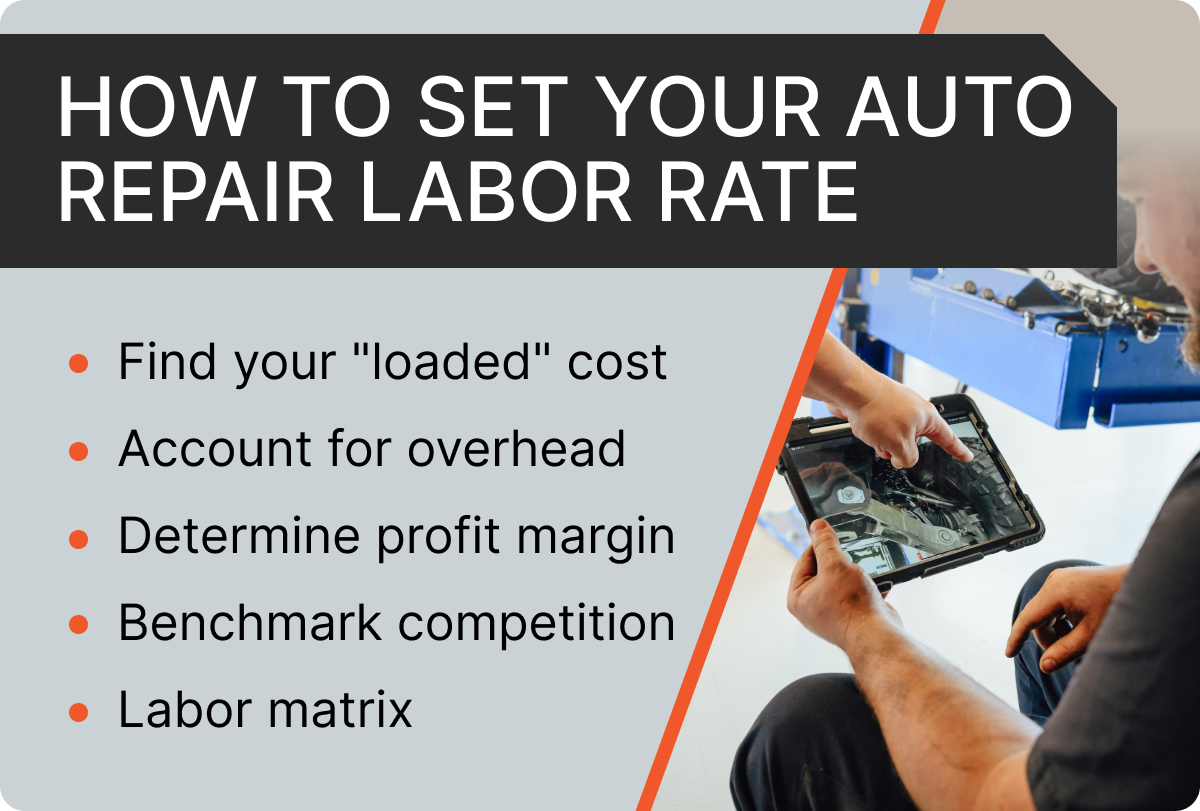
How to set your automotive shop labor rate (step by step)
Setting your rate shouldn't be a guessing game based on what the guy down the street is charging. It should be a data-driven decision. Here is a step-by-step approach to finding your labor rate.
Step 1: Calculate your "loaded" labor cost
First, determine exactly what it costs you to pay an employee. This isn't just their hourly wage. You should include:
Wages and overtime.
Payroll taxes.
Benefits (Health insurance, 401k).
Workers' comp and liability insurance.
Training and certifications.
Any other benefits you provide employees.
Divide this total annual cost by the number of billable hours that the employee produces in a year. This is your "loaded" cost and does not include any profit margin.
Step 2: Account for overhead
Your labor revenue needs to cover more than just the employee. It must also cover the overhead costs of running an auto repair business:
In the automotive industry, labor profit margins vary greatly, but most shops aim for 40-70%. If your loaded cost for a technician is $45 per hour and you want a 65% profit margin, your base mechanic labor rate should be at least $128 per hour.
Step 4: Benchmark against your competition
While your internal numbers should be your primary focus, you shouldn’t ignore the local market. If your labor rate is $128 per hour but every other independent shop in your town is at $100, you need to either justify your value through superior service or find ways to reduce your overhead. Make sure you benchmark against competitors of similar size, services offered, and geographically nearby.
Step 5: Implement a labor matrix
Not every repair order is the same. Many successful shops use a labor guide combined with a labor matrix that slightly increases the rate for more complex jobs or diagnostic work. Shops that perform more specialized repairs or focus on specialty vehicles should heavily consider implementing a labor matrix.
Which factors impact labor rates?
Your rate shouldn't be static. Several external and internal factors will influence how much you can—and should—charge for car repair services.
Location: A higher cost of living in cities like California or New York necessitates higher labor rates compared to rural towns. Your technicians need to earn enough to live nearby.
Shop type: A general auto repair shop usually has lower rates than a specialty Euro shop or a heavy-duty diesel facility. Specialization requires more expensive tools and higher-paid talent.
Certifications: If your team holds advanced ASE certifications or factory training, you provide more value. Customers are often willing to pay more for a repair estimate from a shop they trust to do it right the first time.
Warranty: If you offer a service warranty, you are taking on more risk and can charge more for the peace of mind.
5 Ways Tekmetric can help your shop be more profitable
Tekmetric can help you be more profitable by providing the features and reporting you need to make better business decisions. Tekmetric shops average a 65% labor profit margin by utilizing modern features that help you build trust with your customers and keep them coming back year after year.
Custom labor matrix: Tekmetric allows you to set up labor matrices that automatically adjust your mechanic labor rate. This ensures you don’t undercharge for difficult work.
Real-Time reports: Stop waiting until the end of the month to see if you made money. Tekmetric gives shop owners a real-time look at their gross profit, plus many other helpful metrics.
Measuring effective labor rate: As we discussed, your posted rate isn't always what you take home. Tekmetric tracks your ELR automatically, showing you exactly where "leaks" (like excessive discounting or slow techs) are happening.
Digital Vehicle Inspections (DVI): Higher rates are easier to justify when you can show the customer exactly why they need the work. Tekmetric’s DVIs build trust and increase customer satisfaction, making the price conversation much smoother.
Technician efficiency: By tracking technician efficiency and productivity within the platform, you can see which members of your team are hitting their goals and which employees might need more coaching.
Final thoughts
Setting your labor rate requires constant attention to your local market, your internal costs, and the evolving complexity of car repair. By following these steps, you’ll ensure that your shop doesn't just keep cars running—it keeps your business thriving. If you have questions about Tekmetric or how we can help your shop be more profitable, book your free demo today.
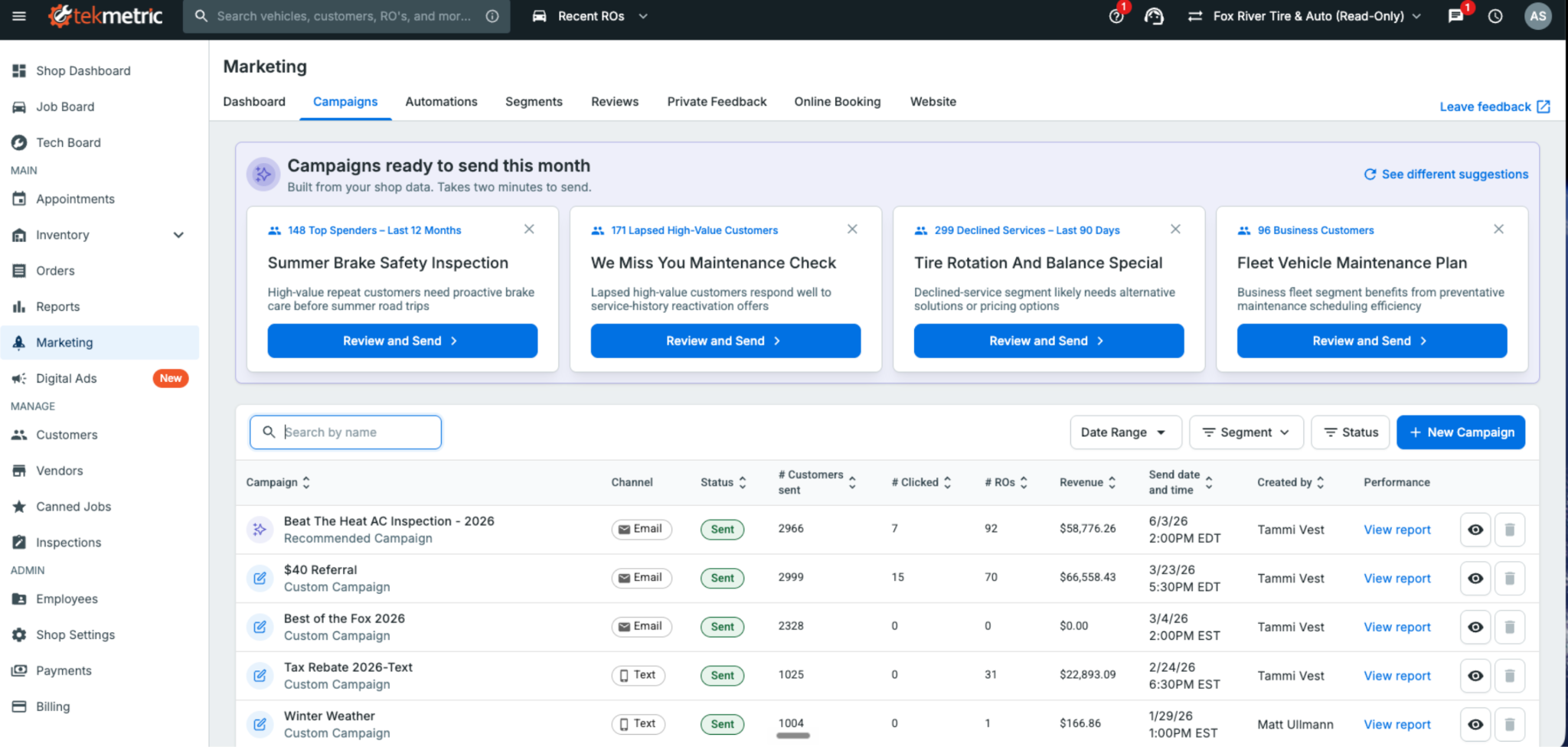
Tekmetric Marketing now builds ready-to-send campaigns. The message is written and the audience is selected. All that's left is to review, personalize, and send.
Most shop owners know the fastest way to fill this week’s bays is by bringing back customers who already trust them — the ones whose vehicles you serviced months ago but haven’t seen since. Re-engaging existing customers is one of the most effective ways to generate new repair orders.
The problem is finding the time to do it. Figuring out what to send, who to send it to, and when to send it almost always loses out to the car on the lift or the customer standing at the front counter
That's where Tekmetric Marketing's Recommended Campaigns come in.
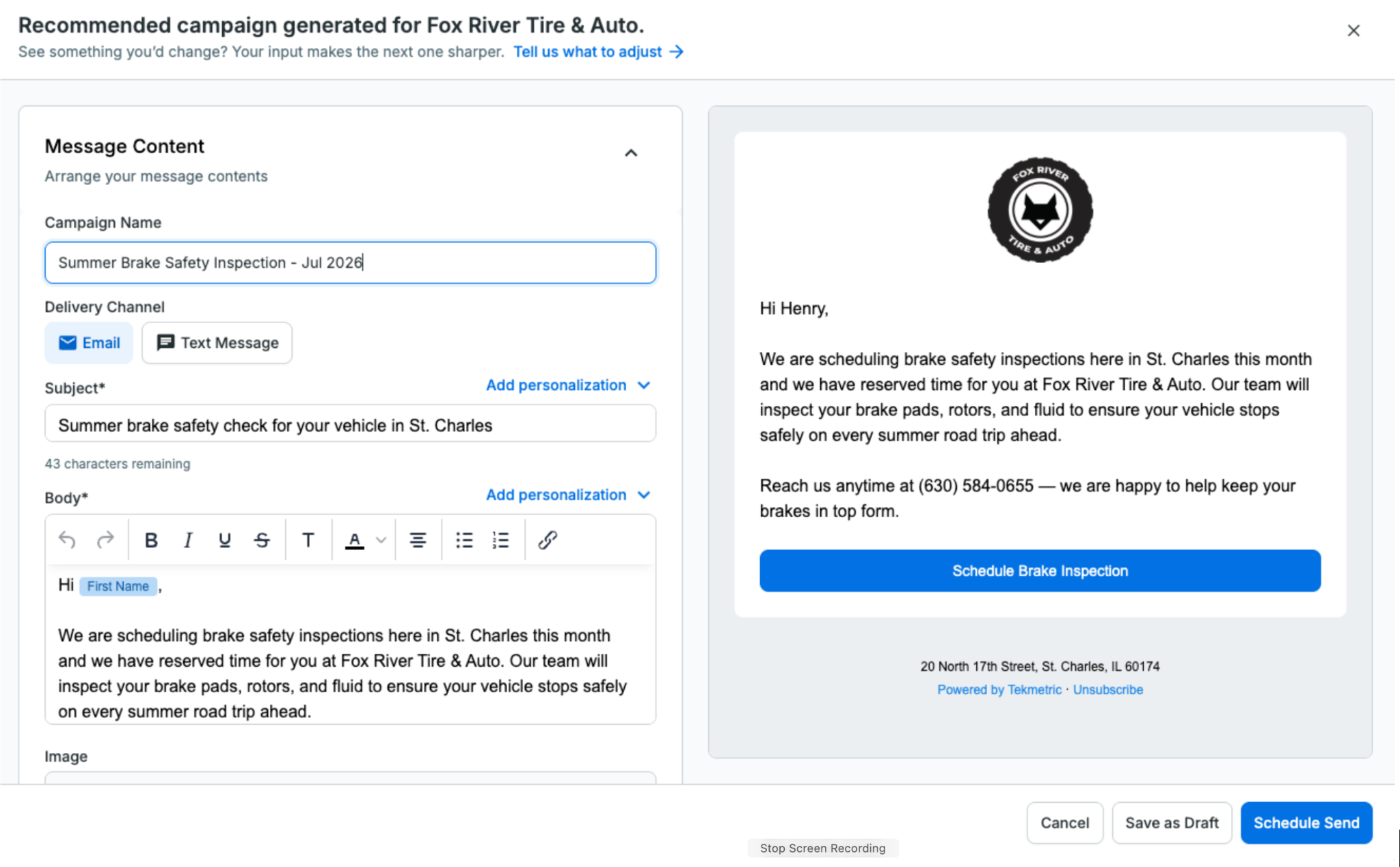
Instead of starting with a blank page, Tekmetric Marketing does the heavy lifting for you. It analyzes your shop’s data and recommends campaigns that are ready to go. The audience is selected, the message is drafted, and all that’s left is for you to review it, make any changes you’d like, and send.
No blank screen. No guesswork.
Just a campaign ready to help bring customers back.
How It Works
Recommended Campaigns automatically surfaces ready-to-send campaigns tailored to your shop using the information Tekmetric already knows — your customers, previous campaigns, location, and seasonality.
You’re always in control.
Review the recommendation, personalize the message so it sounds like your shop, adjust the audience if you’d like, choose when to send it, and you’re done.
What used to take an hour staring at a blank screen can now be done in just a few clicks.
How Fox River Tire & Auto Uses Recommended Campaigns
Like most shops, Fox River Tire & Auto in St. Charles, Illinois, wants to stay connected with customers and bring them back when the time is right. But deciding what campaign to send, then building it from scratch, takes time most shops don't have.
Recommended Campaigns gives Tammi and her team a starting point instead of a blank page. They review the recommendations, edit the suggested content to fit their brand, and send with confidence.
"Recommended Campaigns provide an excellent launchpad for re-engaging with our customers. Instead of starting from scratch, we refine the suggested content to fit our brand and send it with confidence. The process is straightforward, time-saving, and always delivers."
— Tammi Vest, Business Manager, Fox River Tire & Auto
From Reports to Results
Recommended Campaigns is part of a much bigger shift in where Tekmetric Marketing is headed.
For years, marketing platforms have been good at showing you what already happened: campaign reports, open rates, clicks, and dashboards. That’s valuable, but it still leaves the work on you.
Tekmetric Marketing is evolving beyond reporting. Increasingly, it’s helping you decide what to do next, and doing more of the work for you.
You’ve already seen this with Recommended Review Responses. When a customer leaves a Google review, Tekmetric drafts a thoughtful response for you to review and approve.
Recommended Campaigns is the next step.
Instead of simply telling you that you should market to your customers more often, Tekmetric Marketing puts a campaign directly in front of you — already drafted, targeted, and ready to send.
Your marketing should keep working even while you’re heads-down under a hood.
One Year of Continuous Innovation
Since launching Tekmetric Marketing in the fall of 2025, thousands of shops have made it part of how they attract new customers and bring existing ones back.
We’ve also continued investing in the platform based on feedback from shops like yours.
Recent additions include:
Rich text and custom links in every email so you can create more engaging emails and link directly to booking pages, review sites, and promotions. Bold a headline, organize services into a list, and drop in links to your booking page, review site, or a promotion, in both campaigns and automated emails like review requests and service reminders.
Recurring blocks for your calendar for lunch breaks, holidays, staff meetings, and other recurring events. Easily add recurring lunch blocks, staff meetings or holidays to your calendar with a few clicks. No more appointments booked over your team events without you knowing.
Smarter marketing-source tracking on appointments and ROs: Automatically associate appointments and repair orders with the latest marketing campaign or automation that reached the customer. When a customer books after getting a message, the marketing source pre-fills with the most recent campaign or automation sent to them, so attribution is accurate without the guesswork.
Recommended Review Responses, helping you respond to Google reviews in just a few clicks.
Every one of these improvements started with feedback from shop owners looking for simpler, smarter ways to grow their business.
Keep it coming.
Already using Tekmetric Marketing?
Head to Marketing → Campaigns to see what's recommended for your shop and send your first campaign in just a few clicks.
New to Tekmetric Marketing?
See how Tekmetric Marketing helps shops bring customers back with online booking, automated reminders, review generation, and Recommended Campaigns.
If you've been running your shop on paper repair orders, a whiteboard, or a mix of disconnected tools, you've probably wondered about shop management software. You’ve also likely questioned what it does and whether it's worth the cost and the disruption of switching to a digital system.
This blog post answers both questions directly with a clear explanation of what auto repair shop management software is, how it works in a real shop, and the signs it might be time to look at one.
What Is Auto Repair Shop Management Software?
Auto repair shop management software is a platform that connects the core workflows of your shop — from writing estimates to completing repairs to collecting payment — in one place. Instead of tracking jobs on paper, managing parts in spreadsheets, and texting customers from your personal phone, everything lives in a single system your whole team can access.
At its core, it's a connected digital workflow for every repair, from the moment a car pulls in to the moment it pulls out.
📋 Quick Definition Shop Management Software (SMS): Also called a shop management system, is a digital platform that handles the operational and customer-facing workflows of an auto repair shop: repair orders, estimates, digital vehicle inspections, parts ordering, customer communication, invoicing, and reporting. Cloud-based platforms like Tekmetric can be accessed from any device without on-site servers.
A Step-by-Step Guide of What It Does
The easiest way to understand shop management software is to follow a repair from start to finish and see what the platform touches at each step.
1. Customer Arrives: Write-up and Scheduling
When a vehicle comes in, the service adviser opens a new repair order (RO) directly in the software. Customer info, vehicle history, and previous service notes are already there. There’s no need to search through masses of paper, and no digging through filing cabinets.
2. Technician Inspection: Digital vehicle inspection (DVI)
The tech completes a DVI on a tablet or mobile device, adding photos and videos of anything that needs attention. The results are automatically attached to the repair order and can be sent directly to the customer by text before the service adviser even picks up the phone.
This is one of the biggest workflow shifts shop owners find most beneficial. Customers can review inspection results, see pictures of the issue, and approve or decline work from their phone with no callbacks.
💬 From a Tekmetric customer "The text feature is a huge hit — customers can review inspection results, check estimates, and approve repairs with just a click. The system is really streamlined and everything is integrated, making our workflow way smoother than before." - Verified Tekmetric Customer, G2
3. Estimate Building and Approval
Once the DVI is complete, the service adviser builds an estimate inside the same system. Parts prices, labor rates, and canned jobs are already set up so advisers aren't manually pricing every line. The estimate flows directly into the repair order once the customer approves.
4. Parts Ordering
Parts ordering happens inside the platform, too. Service advisers can submit orders to their suppliers directly from the repair order, track delivery status, and receive parts against open jobs without leaving the system.
5. Work is Performed and Technicians Stay on Track
The tech board gives service advisers and managers a real-time view of every job in the shop: what's waiting, what's in progress, and what's ready. Techs can update job status from their own device, which keeps the whole team on the same page without walking back and forth to the front desk.
6. Invoice and Payment
When the job is complete, the repair order becomes an invoice. Payment can be collected at the counter, sent by text, or processed through a payment link — depending on how the shop is set up.
7. Customer History
Every completed repair, every declined service, every inspection — it's all stored in the customer's profile. Next time they come in, the service adviser already knows what was done, what was deferred, and what's coming up. That's how you build trust and bring customers back.
What Does It Replace?
Most shops that switch to a management platform are replacing one or more of the following:
Paper repair orders and handwritten estimates
Printed or whiteboard job boards
Phone calls and personal texts for customer communication
Spreadsheets for parts inventory and pricing
Separate software tools for inspections, scheduling, and invoicing that don't talk to each other
💬 From a Tekmetric customer "We were originally running our shop with two systems; one was for digital inspection and the other was our shop management system. ... I was spending $1,000 a month between the software companies and the IT support. And if the internet connection blipped for a split second, my digital inspection went down for about an hour. Now I'm paying a fraction of what I was before. … We saved a bunch of money, and the estimate writing process is much faster because the labor guide is built into the system." - Stephane Grabina, Excluservice, Tekmetric Customer
Signs Your Shop Needs a Digital Shop Management System
You don't need to be a high-volume shop to benefit from management software. Here are the signals that tell you it's worth a closer look:
You're writing the same information down in multiple places such as a paper RO, whiteboard, or a text to the customer
Technicians are walking to the front desk to ask questions that should already be in the job
You can't tell at a glance how many cars are in progress or where each one stands
Customers call asking for updates that your team has to scramble to find
You're leaving declined work in your head instead of a system and losing follow-up opportunities
Your end-of-day reporting comes from memory or a calculator
None of these are signs of a poorly run shop. They're signs of a shop that has outgrown what paper and disconnected tools can do.
Do You Actually Need It?
If your shop is processing more than a handful of cars a day, the answer is yes.
The goal of shop management software isn't to add another system to manage. It's to replace the friction in your current process — the paper, the callbacks, the manual pricing, the jobs that fall through the cracks — with one workflow your whole team can use.
"It integrates every aspect of running our shop — from scheduling appointments and messaging customers to integrating payments and sending invoices." - Gigi Collier, G2 Review, Tekmetric Customer
📌 Bottom Line Auto repair shop management software connects your repair orders, inspections, parts, customer communication, and reporting in one place. It replaces the paper and disconnected tools most shops are running on today and gives you the visibility to run your business with more confidence and less noise.
What to Look For in a Shop Management Platform
Not all platforms are built the same. The best ones don't just digitize each task — they connect them, so information moves from one step to the next without anyone rekeying it.
Repair order and estimate workflow The platform should make it fast to write up a job, build an estimate, and convert it to a repair order without re-entering anything. Look for built-in labor guides and canned jobs so your team isn't pricing from scratch every time. On Tekmetric, estimates flow straight into the repair order, and labor and parts matrices keep pricing accurate and margins protected.
Digital vehicle inspections (DVI) DVIs are one of the highest-impact features in any shop management platform. When technicians attach photos and videos and customers approve work from their phones, authorization rates climb and comebacks drop. The lift is measurable: shops on Tekmetric average $612 per repair order, rising to $741 once digital vehicle inspections are in use. Customers approve more work when they can see exactly what their vehicle needs.
Parts ordering and inventory Look for parts ordering built into the repair order, so your team submits orders without leaving the job or logging into a separate portal. Tekmetric connects to more than 70 integrations, including the parts suppliers most shops already use, and inventory tracking helps prevent shortages while protecting your parts margin.
Customer communication Two-way texting, digital estimates, and automated follow-ups should be built in, not bolted on through a third-party tool. Every extra place your team has to go to reach a customer is another place things fall through the cracks. Tekmetric keeps it in one platform: text a customer, send an estimate, and follow up on a declined service from the same screen.
Reporting and visibility A strong platform gives you a live view of what's happening in your shop right now — car count, technician productivity, average repair order — without pulling a report or doing the math. Tekmetric's real-time reporting puts those numbers in front of you as the day unfolds, so you can coach your team and clear bottlenecks while it still matters, instead of finding out next week.
Cloud-based access Cloud-based platforms don't need an on-site server to maintain or replace, they back up your data automatically, and they let you log in from anywhere — the shop, home, or the road. Shop owners on Tekmetric point to exactly this: no server to buy and swap out every few years, and the freedom to work from any terminal at any location. It matters more than most owners realize until the day they need it.
See How Tekmetric Works
Tekmetric is the shop management platform built for independent auto repair shops. Repair orders, digital inspections, parts ordering, payments, and real-time reporting all run in one system, on any device. There are no servers and no syncing between tools that don't talk to each other and one login for the whole team.
It was built by someone who lived through the problem. Founder and CEO Sunil Patel ran his own shop and built Tekmetric to clear the friction he hit every day. More than 15,000 shops now run on it, connected to more than 70 integrations for the parts suppliers, labor guides, and accounting tools they already use.
What Changes When the Workflow Connects
When inspections go digital, customers see exactly what their vehicle needs — photos, videos, and clear findings in a single message. When they understand the work, they approve more of it. The results track it: Tekmetric shops average $612 per repair order. With digital vehicle inspections in use, that average rises to $741. Add MotoVisuals educational videos, and it reaches around $800. It’s the same honest work, but more of it is approved because customers understand what they're paying for.
That's the pattern across the platform. Faster turnaround from check-in to checkout. More cars through the bays. A customer experience that earns repeat visits. The friction falls away, and shops run on results instead of guesswork.
💬 From a Tekmetric customer "The amount of information that is available to the front desk, the service adviser, and the technician at a glance is very impressive, and the functionality of it together is great." — Moises M., Guest Service Representative, G2 Reviews, Tekmetric Customer






.svg)



.svg)

.svg)
.svg)
.svg)
.svg)
.svg)
.svg)